
Cumulative Layout Shift, or CLS, measures how much visible content moves unexpectedly while a page is loading. In WordPress, CLS problems often come from images without reserved space, web fonts that swap late, and ads or embeds that load after the main content. A high CLS score hurts user experience and can affect search visibility through Core Web Vitals.
The good news is that most CLS issues in WordPress are fixable without rebuilding your site. If you reserve space for media, load fonts more carefully, and control ad containers, you can make your pages feel much more stable.
Why CLS happens in WordPress
WordPress sites often combine themes, plugins, page builders, ad networks, and third-party scripts. Each of these can introduce layout shifts if elements appear late or change size after the initial render.
The most common causes include:
- Images inserted without proper width and height attributes
- Lazy-loaded media above the fold that appears after text has already rendered
- Web fonts that cause text to reflow when the custom font replaces a fallback font
- Ads and embeds that load dynamically without a reserved container size
- Headers, cookie bars, or popups injected at the top of the page after load
Before making changes, test your pages with tools such as PageSpeed Insights or Lighthouse. These reports can help you identify which elements are shifting and when the shifts occur.
How to reduce CLS from images in WordPress
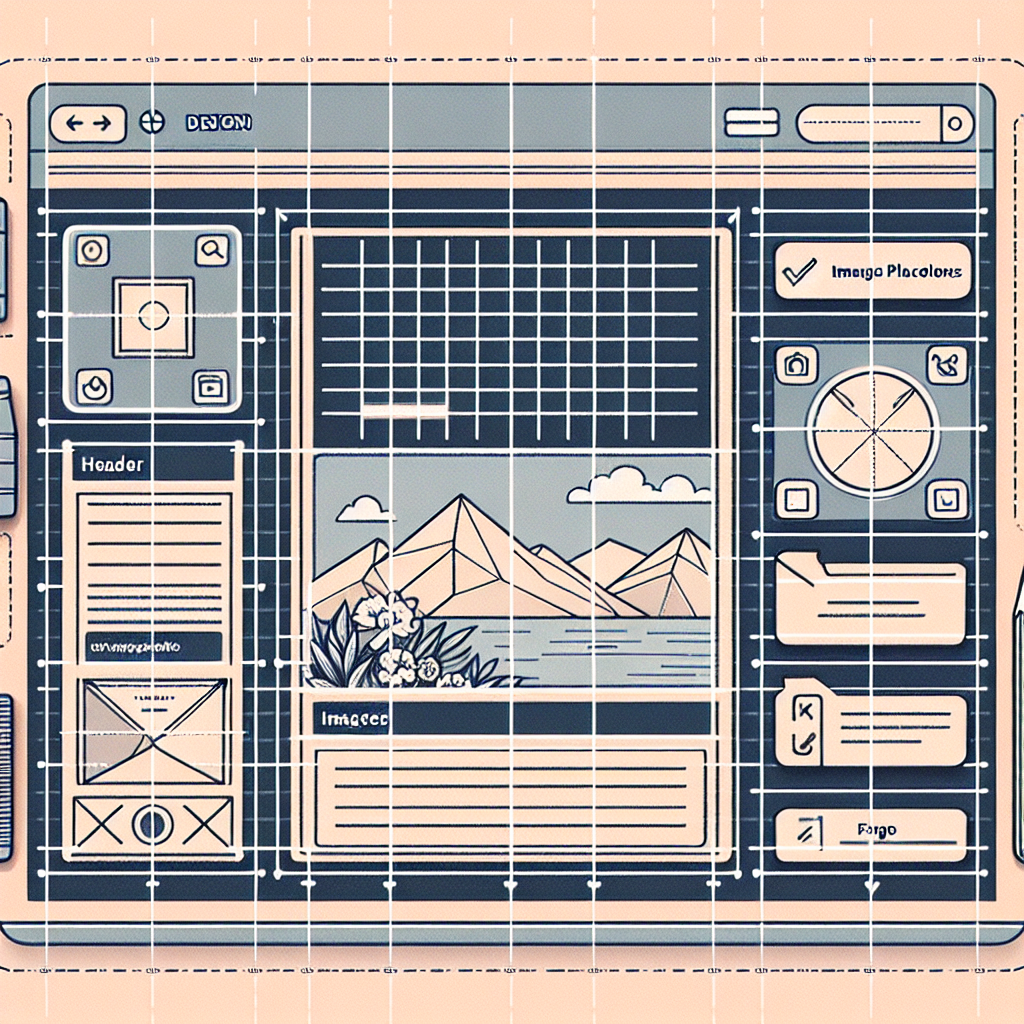
Images are one of the easiest CLS issues to fix. The browser needs to know how much space to reserve before the image file finishes loading. If that space is unknown, surrounding content can jump when the image appears.
Add explicit width and height attributes
Modern WordPress versions usually add image dimensions automatically when you use the Media Library correctly. Still, problems can happen with manually inserted images, custom theme code, sliders, or page builder modules.
Make sure your image markup includes both width and height values. This allows the browser to calculate the correct aspect ratio before the image loads.
- Use the WordPress image block instead of pasting raw image URLs
- Avoid removing width and height attributes in theme templates
- Check custom fields, featured image outputs, and gallery plugins
Reserve space for responsive images
Responsive images can still be stable when dimensions are present. The browser uses the aspect ratio to scale the image correctly across devices. If your theme strips dimensions or wraps images in containers with unpredictable heights, CLS can still occur.
For banners, hero sections, and featured images, define a consistent aspect ratio in your design choices. Try to avoid layouts where image height depends on late-loading scripts.
Be careful with lazy loading above the fold
Lazy loading is useful, but not every image should be delayed. If your logo, hero image, or featured image at the top of the page loads too late, users may see a shift. Exclude critical above-the-fold images from lazy loading when necessary.
- Keep lazy loading enabled for below-the-fold content
- Disable lazy loading for the main hero image if it causes visible movement
- Test homepage, blog posts, and landing pages separately
Set dimensions for image ads, iframes, and embeds
Embedded videos, social posts, affiliate banners, and other media should also have reserved space. If you place a YouTube embed or promotional image inside content, use a container with a predictable size so text does not jump when the embed initializes.
How to reduce CLS from fonts in WordPress
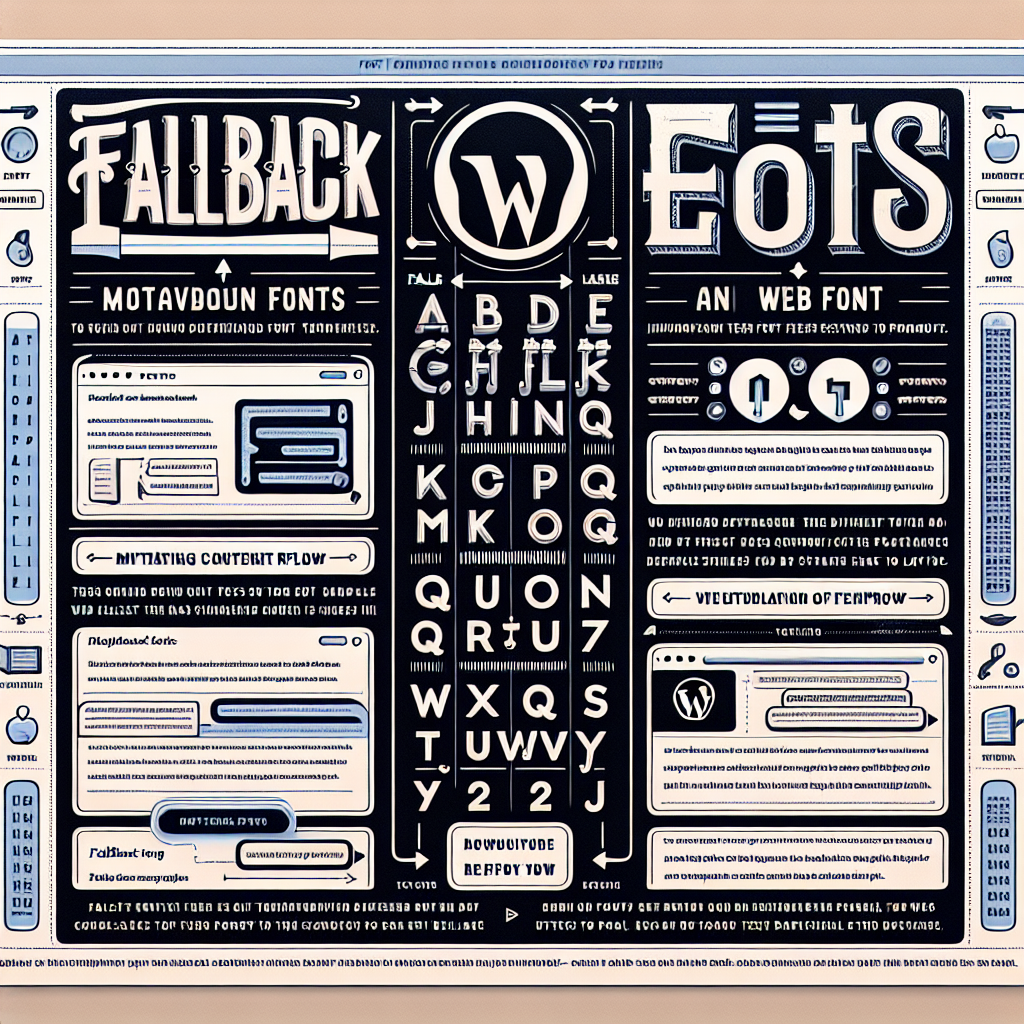
Fonts can cause layout shift when the fallback font and the final web font have different metrics. This is common when themes load Google Fonts or custom font files without considering how text will behave during the swap.
Use fewer font families and weights
Every extra font file increases the chance of delayed rendering or late swapping. Limit your site to the font weights and styles you actually use. A leaner font setup improves both performance and stability.
- Remove unused font families from your theme settings
- Avoid loading multiple weights if only one or two are needed
- Prefer system fonts when brand requirements allow it
Choose a better font loading strategy
A common best practice is to use font-display behavior that reduces invisible text and minimizes disruptive swaps. In practical terms, this means the browser can show fallback text quickly and switch more gracefully when the web font becomes available.
In WordPress, this may be controlled by your theme, performance plugin, or font plugin. Review whether your current setup is loading fonts locally, preloading critical font files, or using an external provider in a way that delays rendering.
Match fallback fonts more closely
If your fallback font has very different spacing, height, or width from your final font, the text block can resize when the custom font loads. Choose fallback fonts with similar proportions to reduce the visible jump.
This matters most for large headings, navigation menus, and hero text. Small differences become much more noticeable when the text is prominent.
Host fonts locally when possible
Serving fonts locally can reduce dependency on third-party requests and improve timing consistency. Many WordPress optimization plugins and themes support local Google Fonts or custom font hosting. This can help reduce both render delays and layout instability.
How to reduce CLS from ads and dynamic content

Ads are a major source of CLS because they often load after the main content and can expand unexpectedly. If an ad slot has no reserved dimensions, the browser has no choice but to push content down when the ad arrives.
Create fixed-size ad containers
Always reserve space for ad units, even when no ad is returned. If your ad network serves multiple sizes, design the container around the most likely dimensions or the largest expected size in that placement.
- Set a minimum height for each ad location
- Keep ad slots out of the flow of critical content when possible
- Do not insert ads above existing content after users start reading
Avoid expanding ads near the top of the page
Large leaderboard ads, sticky units, and auto-injected placements near the header can create the most disruptive shifts. Place ad units in stable containers and avoid dynamic insertion above headlines or featured images.
Control placeholders for affiliate widgets and recommendation boxes
Not all dynamic content comes from traditional ad networks. Related post widgets, email signup boxes, review tools, and affiliate scripts can also shift layouts. Use placeholders or fixed wrappers so these elements do not suddenly resize the page.
WordPress-specific fixes and plugin tips
Because WordPress relies on themes and plugins, reducing CLS often means checking how your stack outputs media and scripts.
- Update your theme so it uses modern image markup and responsive media handling
- Audit page builder sections for sliders, carousels, and background images that load late
- Use performance plugins carefully because aggressive lazy loading or script delays can create new shifts
- Test ad plugins and embed plugins to confirm they reserve space before content appears
- Review mobile layouts because CLS often looks worse on smaller screens
If you use a caching or optimization plugin, test each feature one by one. A setting that improves speed in one area can create layout instability in another.
Best practices checklist for lower CLS
- Add width and height attributes to all images
- Preserve aspect ratios for responsive media
- Do not lazy load critical above-the-fold images
- Reduce the number of font files and weights
- Use fallback fonts similar to your web fonts
- Host fonts locally when possible
- Reserve fixed space for ad slots and embeds
- Avoid injecting banners or widgets above existing content
- Test key templates such as homepage, posts, category pages, and landing pages
Reducing CLS in WordPress is mostly about making page layout predictable before every asset fully loads. When images have dimensions, fonts load with less reflow, and ads sit inside reserved containers, your pages feel smoother and more trustworthy.
Start with the biggest troublemakers first: hero images, heading fonts, and ad units near the top of the page. Small technical fixes in these areas can lead to a noticeable improvement in Core Web Vitals and a better experience for every visitor.
Leave a Reply