
Why WordPress REST API Permission Errors Happen
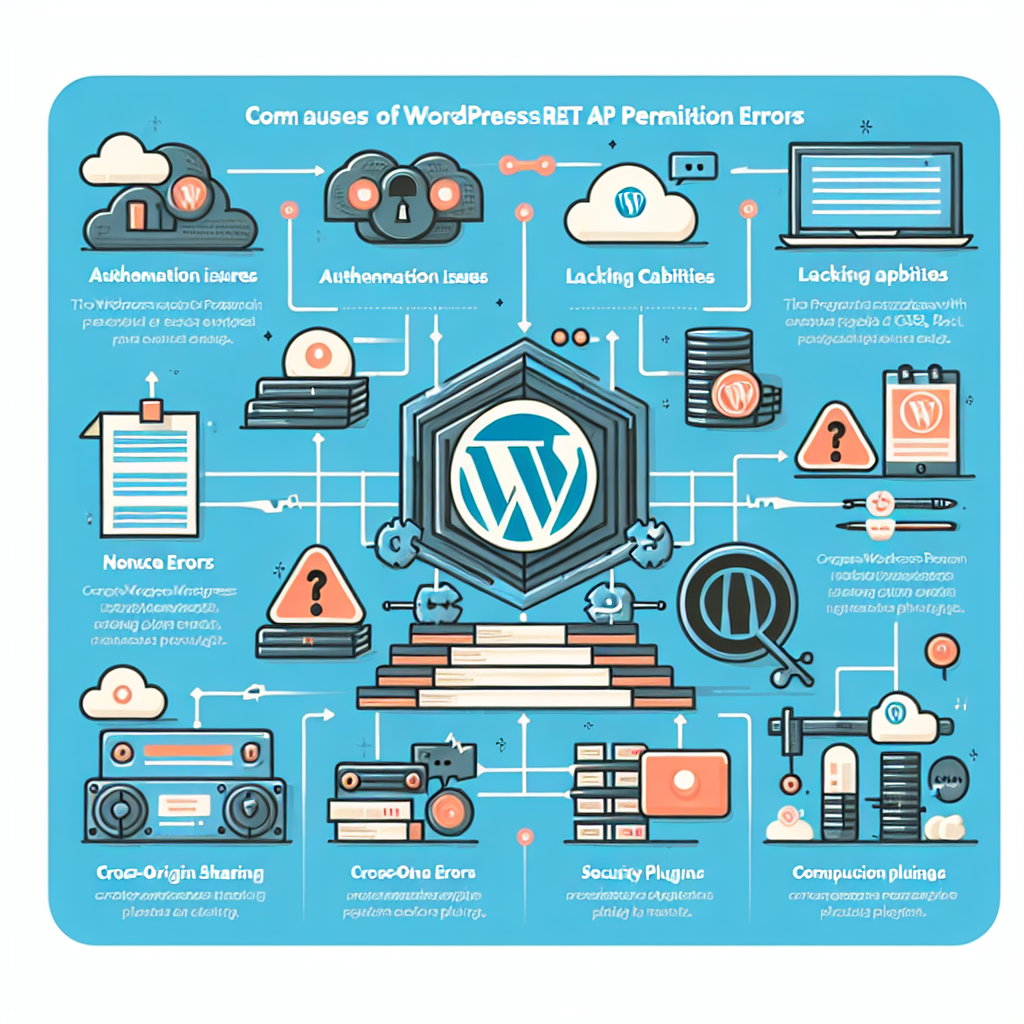
WordPress REST API permission errors usually appear when a request reaches the API, but WordPress decides the current user, token, or application does not have enough access to complete the action. In headless sites and plugin-driven workflows, these errors can break content syncing, form submissions, media uploads, and custom dashboard features.
The good news is that most permission errors come from a small set of causes: missing authentication, incorrect user capabilities, blocked endpoints, bad nonce handling, or server/security rules that interfere with requests. Once you know where to look, the fix is often straightforward.
Common error messages you may see
- rest_forbidden or rest_cannot_create
- Sorry, you are not allowed to do that
- 401 Unauthorized or 403 Forbidden
- Invalid nonce
- cURL error or blocked preflight requests in headless front ends
These messages point to different parts of the request lifecycle, so the fix depends on whether the issue is authentication, authorization, or transport.
Step-by-Step Troubleshooting for REST API Permission Errors
1. Confirm the endpoint and HTTP method
Start by verifying that you are calling the correct endpoint with the correct method. A route may allow GET requests but reject POST, PUT, or DELETE. This is especially common with custom plugin endpoints and headless publishing flows.
Check the route registration in your plugin or theme code. If the endpoint is meant to create or update content, make sure the callback is registered with the proper methods and a permission callback that matches your intent.
2. Check whether the request is authenticated
Many REST API permission errors happen because WordPress treats the request as anonymous. In headless workflows, this often means the front end is not sending authentication cookies, a nonce, an application password, or a token expected by your setup.
For logged-in browser requests, confirm that cookies are being sent and that the nonce is valid for the current session. For external apps, use a supported authentication method such as Application Passwords, OAuth, or JWT if your stack explicitly supports it.
3. Verify user capabilities and roles
Even when a request is authenticated, WordPress still checks whether the user can perform the action. For example, creating posts usually requires different capabilities than reading public content. A subscriber may be able to view data but not edit or publish it.
Review the capability checks in custom code. If your endpoint uses current_user_can(), make sure the required capability matches the task. If a plugin workflow is failing, test with an Administrator account to determine whether the issue is role-related.
4. Inspect the permission_callback in custom routes
When you register custom REST routes, the permission_callback controls access. If this callback returns false, null, or an unexpected value, WordPress blocks the request. This is one of the most common causes of custom plugin permission errors.
A good permission callback should be explicit and easy to reason about. For example, if only editors should access the route, check for the right capability and return a boolean result. Avoid overly broad rules that create security risks, but also avoid accidental denial caused by logic that is too strict.
5. Test nonce handling in browser-based workflows
For requests made from the WordPress admin or a logged-in front end, nonce validation can fail if the nonce is missing, expired, or sent in the wrong header. This often shows up as a permission error even though the user is logged in.
Make sure your JavaScript sends the nonce in the expected header and that the value is generated for the current session. If the page stays open for a long time, refresh the nonce before retrying the request.
6. Check CORS and preflight behavior in headless setups
Headless WordPress sites frequently run into permission-like errors that are actually caused by browser security rules. If your front end is on a different domain, the browser may block the request before WordPress even processes it.
Look for missing CORS headers, failed OPTIONS preflight requests, or credentials not being allowed across origins. When authenticated requests are involved, both the front end and server must be configured to allow credentials safely.
7. Review security plugins, caching, and WAF rules
Security plugins, reverse proxies, and web application firewalls can block REST API requests that look suspicious. Caching layers may also serve stale responses or strip authentication headers, especially in custom workflows.
Temporarily disable security plugins one by one, clear caches, and test again. If the issue disappears, create an allowlist rule for the endpoint or adjust the plugin settings so legitimate API requests are not blocked.
Fixes for Headless WordPress Workflows
Use an authentication method designed for API access
Headless builds often fail when they rely on browser cookies alone. If your front end is separate from WordPress, use a method that works reliably for server-to-server or client-to-server requests. Application Passwords are often the simplest native option for authenticated API access.
If you need the front end to act on behalf of a user, ensure your authentication flow is secure and that tokens are stored and transmitted correctly. Never expose admin credentials in client-side code.
Make sure credentials are included when needed
If your front end uses fetch or a similar client, confirm that requests include credentials when required. Without them, WordPress may treat the request as anonymous, which leads to a permission error even though the user is logged in.
Also verify that your server allows cross-origin credentialed requests. A mismatch between the client configuration and server headers is a common cause of confusing failures in headless environments.
Separate public reads from protected writes
A strong headless architecture usually treats reads and writes differently. Public content can often be fetched without authentication, while mutations like creating posts, updating metadata, or uploading media should require a secure authenticated flow.
This separation reduces permission problems and makes debugging easier. If a write request fails, you know to focus on auth, capabilities, or nonce handling instead of public endpoint access.
Fixes for Plugin and Custom Endpoint Workflows
Audit the route registration
In plugin workflows, permission errors often begin in the route definition itself. Double-check the namespace, route path, allowed methods, and permission callback. A typo or overly strict callback can block requests before your business logic runs.
Keep route logic simple and test each endpoint with a tool like cURL, Postman, or the browser network panel. That makes it easier to tell whether the problem is in the route registration or inside the callback.
Return the right response from permission callbacks
The permission callback should return a clear boolean result or a valid WP_Error when access is denied. Unexpected return values can produce misleading permission failures. If your callback depends on user state, log the current user ID and capability checks during development.
For example, if an editor-only endpoint is denying administrators, the issue may be a capability mismatch rather than a REST bug. WordPress roles and capabilities are flexible, so always check the actual capability the action requires.
Debug custom meta, taxonomy, and media actions
Many plugin workflows involve custom fields, taxonomies, or media uploads. These actions often require extra permissions beyond basic post access. A user may be able to edit a post but still fail when updating protected meta or uploading files.
Review custom registration arguments for meta fields and ensure they are exposed correctly to the REST API. If a field is protected, WordPress may reject the request unless the user has the right capability or the field is configured for REST access.
A Practical Debugging Checklist
- Confirm the endpoint, method, and route namespace.
- Test the request as an administrator to isolate role issues.
- Verify authentication: cookies, nonce, application password, or token.
- Check the permission callback and capability checks.
- Inspect browser console and network logs for CORS or preflight failures.
- Disable security plugins and clear caches to rule out interference.
- Test with Postman or cURL to separate client issues from server issues.
- Review server logs for blocked requests, 401s, 403s, or malformed headers.
Best Practices to Prevent Future Permission Errors
Design endpoints with least privilege
Only allow the minimum access needed for each action. This reduces risk and makes permission logic easier to maintain. Public endpoints should stay public, while sensitive operations should require explicit authentication and capability checks.
Document your auth and capability model
In headless and plugin-heavy projects, undocumented assumptions create recurring bugs. Write down which endpoints require which role, token, nonce, or capability. That documentation saves time when debugging later or handing the project to another developer.
Test after plugin, theme, and server changes
REST API permission issues can appear after a seemingly unrelated update. A new security plugin, a changed caching rule, or a server config tweak can break previously working requests. Include API checks in your deployment workflow so you catch regressions early.
Conclusion
WordPress REST API permission errors are usually caused by one of a few predictable issues: missing authentication, incorrect capabilities, bad nonce handling, strict permission callbacks, or server-side blocking. In headless builds, the biggest culprits are cross-origin and credential problems. In plugin workflows, route registration and permission logic are often the root cause.
By checking the request method, authentication method, user capabilities, and server/security layers in a structured way, you can fix the error faster and prevent it from returning. If you build with clear access rules and test API routes regularly, WordPress REST workflows become much more reliable.
For more details on the REST API, see the WordPress REST API Handbook.