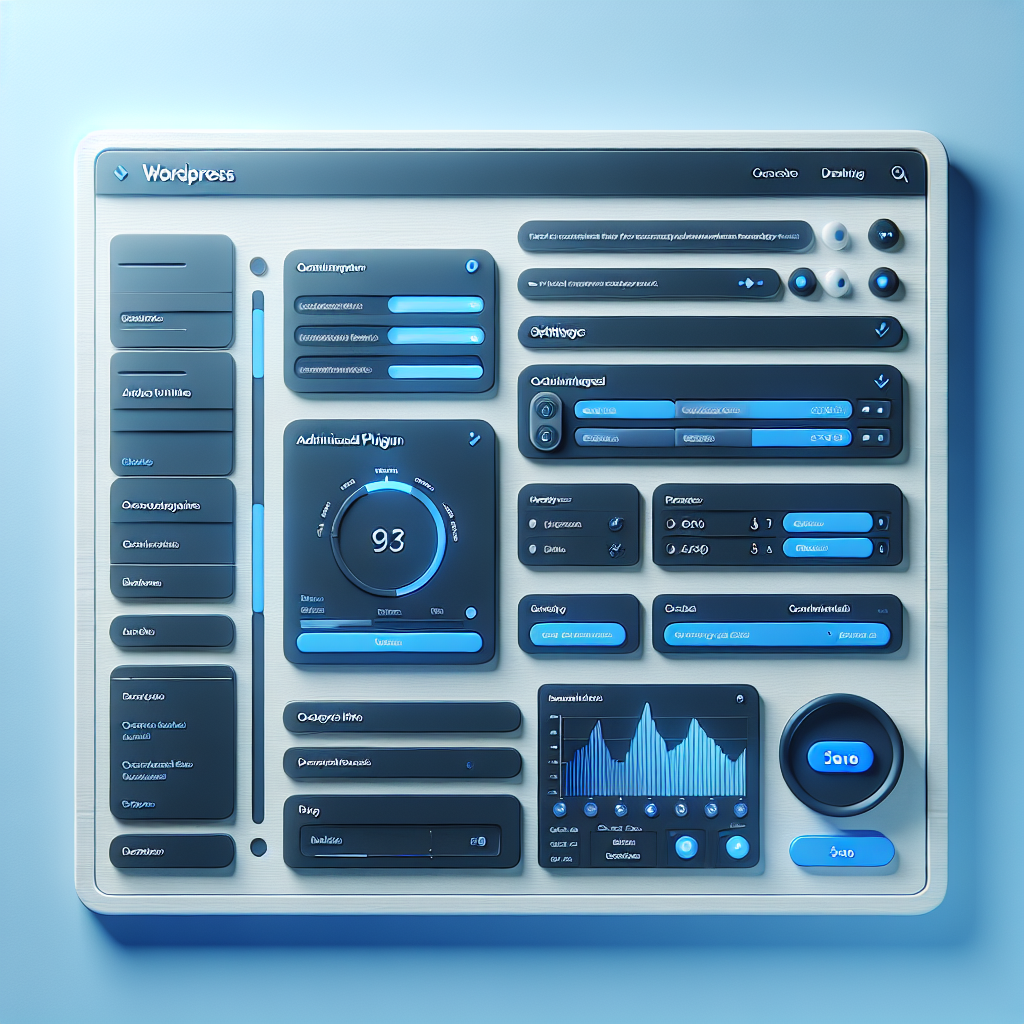
WordPress admin screens do not need to be limited to PHP-rendered forms and page reloads. If you want a faster, more interactive experience for editors or site managers, you can build a small admin tool with Vue 3 and connect it to WordPress through the REST API. This approach works especially well for dashboards, quick settings panels, content utilities, and internal workflows.
In this guide, you will learn the basic structure of a lightweight WordPress admin tool, how to register an admin page, expose data through a custom REST route, and mount a Vue 3 app inside wp-admin. The goal is not to create a huge application, but to build something practical, maintainable, and easy to extend.
Why use Vue 3 for a WordPress admin tool?
Vue 3 is a strong fit for small admin interfaces because it is reactive, compact, and easy to embed into an existing WordPress plugin. You do not need to replace WordPress or build a headless site to benefit from it. Instead, you can keep WordPress as the backend and use Vue only where interactivity matters.
A small Vue-powered admin tool is useful when you need:
- A settings panel with instant feedback
- A searchable list of custom data
- A utility for editors, such as metadata cleanup or content validation
- A custom report that pulls data without reloading the page
- A workflow tool used by administrators or internal teams
The biggest advantage is user experience. Instead of submitting forms and waiting for full page refreshes, users can filter, save, and validate data in place. At the same time, WordPress still handles authentication, permissions, and storage.
Project structure: plugin, admin page, and app mount point
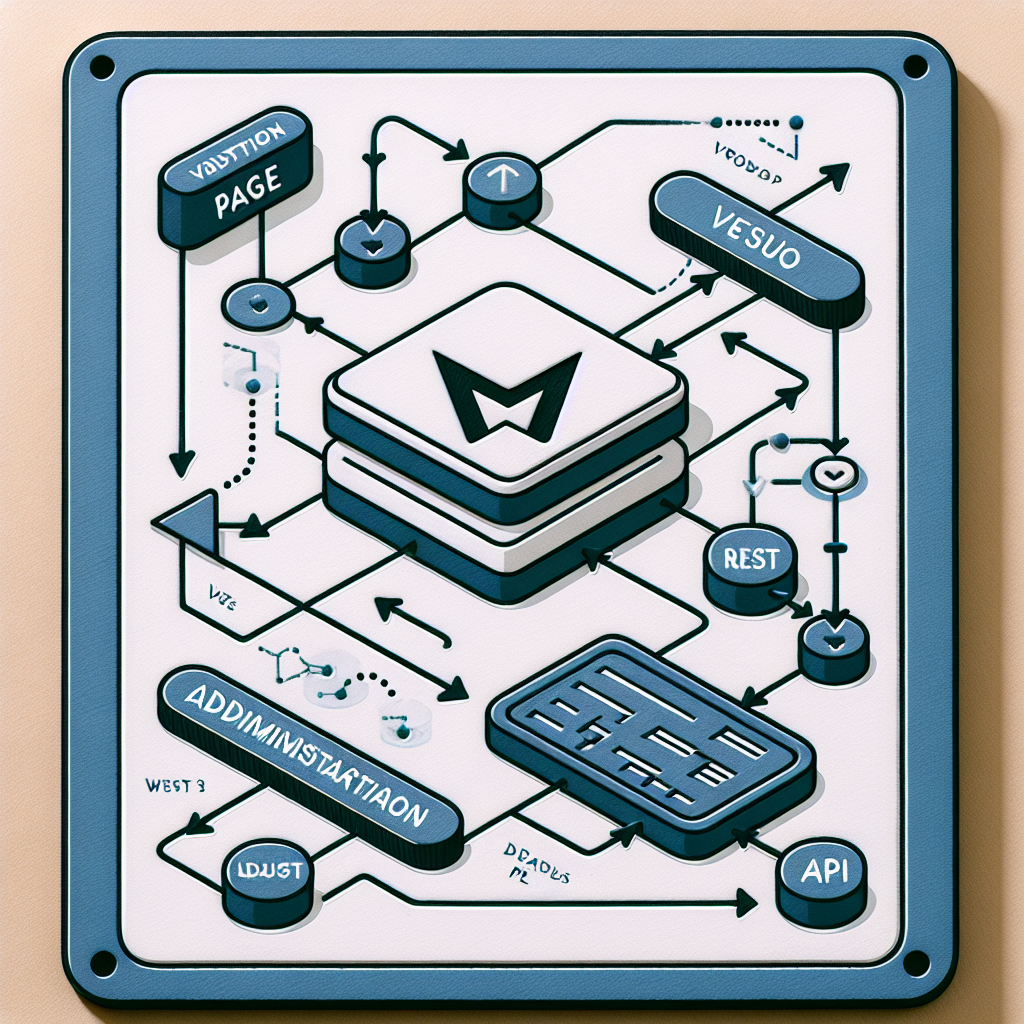
The cleanest way to build this is as a small plugin. Your plugin creates an admin menu page, outputs a mount element for Vue, and enqueues a JavaScript bundle only on that screen.
A simple structure might look like this:
- my-admin-tool.php for plugin bootstrap code
- assets/ for compiled JavaScript and CSS
- src/ for Vue components during development
- includes/ for REST route registration and server logic
On the WordPress side, the first step is registering the admin page. That page can output a simple container such as a div with an ID like my-admin-tool-app. Vue will mount into that container after the script loads.
You also want to limit script loading to your plugin screen. That keeps wp-admin lighter and avoids conflicts with unrelated pages. In practice, you check the current admin hook and enqueue your app only when needed.
What the PHP side is responsible for
Your PHP code should handle the parts WordPress is already good at:
- Registering the admin menu page
- Checking capabilities such as manage_options
- Enqueuing your built Vue assets
- Passing configuration data to JavaScript
- Registering REST routes
- Validating and sanitizing incoming data
This separation matters. Vue should manage interface state, but WordPress should remain the source of truth for permissions and persistence.
Creating a custom REST API endpoint

The REST API is the bridge between your Vue interface and WordPress data. While you can sometimes use existing core endpoints, small admin tools often benefit from a custom route that returns exactly the data the interface needs.
For example, imagine an admin tool that stores a small set of plugin options. You could register a route under your own namespace, such as my-tool/v1/settings, and support both reading and updating data.
When creating custom endpoints, keep these principles in mind:
- Use a unique namespace for your plugin
- Protect routes with a proper permission_callback
- Sanitize every field before saving
- Return structured JSON that is easy for Vue to consume
- Keep endpoints focused on one task
A typical workflow looks like this:
- A user opens your admin page
- Vue loads and requests current settings from your REST endpoint
- The user updates fields in the interface
- Vue sends the new values back with a POST or PUT request
- WordPress validates, saves, and returns a success response
Because the user is already logged into wp-admin, WordPress authentication can work smoothly with REST requests. In many setups, you will use the REST nonce provided by WordPress and send it in the request headers.
Security and validation best practices
Even though your app runs in the admin area, you should still treat every request as untrusted input. Capability checks are essential. If only administrators should use the tool, enforce that on the server. If editors can access some features, create more granular permission logic.
You should also sanitize every field based on its expected type. Text fields, URLs, numbers, and arrays all require different handling. This keeps your database clean and reduces the risk of malformed data or privilege misuse.
Finally, return meaningful error messages. A good admin tool should tell the user whether a save failed because of validation, permissions, or a server issue.
Mounting a Vue 3 app inside wp-admin
Once your admin page exists and your REST route is ready, the next step is mounting Vue 3. In your JavaScript entry file, create the app and attach it to the container rendered by your plugin page.
The app itself can stay small. A single root component may be enough if the tool only includes a few fields and a save button. If the interface grows, split it into components for forms, notices, tables, or filters.
At startup, your Vue app usually needs a few values from WordPress, such as:
- The REST base URL
- The REST nonce
- The current user capability context
- Default settings or localized labels
You can pass that data from PHP when enqueuing the script. This gives Vue the information it needs without hardcoding environment-specific values.
Inside the app, use Vue 3 reactivity to manage loading states, form values, success notices, and validation errors. This is where the user experience improves most. A small tool feels much more polished when it can indicate that data is loading, disable buttons while saving, and show confirmation without reloading the page.
Keep the interface aligned with WordPress
Even though Vue powers the interaction, the admin page should still feel like part of WordPress. Use clear headings, concise labels, and familiar spacing in your stylesheet. Avoid turning a simple settings screen into a full single-page application unless the complexity truly requires it.
It is also smart to keep accessibility in mind. Use semantic headings, descriptive button text, and visible status messages. Small internal tools often get less design attention, but they still benefit from a thoughtful interface.
Example use case: a lightweight settings manager
To make the architecture more concrete, consider a plugin that lets administrators manage three options:
- A custom dashboard message
- A toggle to enable a feature
- A support URL shown to editors
The flow would be simple:
- WordPress adds a menu item called Tool Settings
- The page outputs a Vue mount element
- Vue fetches current option values from a custom REST endpoint
- The user edits the form and clicks save
- The REST endpoint validates and stores the options
- Vue shows a success message immediately
This kind of tool is small enough to build quickly, but it demonstrates the full pattern you can reuse for more advanced admin interfaces.
Tips for maintainability and performance
Small tools can become messy if you rush the setup. A little structure early on makes future updates much easier.
- Scope your assets so scripts load only on your admin screen
- Keep REST responses focused and avoid returning unnecessary data
- Separate UI logic from server logic so each side stays easier to test
- Use clear naming for routes, options, and components
- Design for extension if the tool may later include more tabs or actions
For performance, remember that admin tools usually do not need a huge frontend stack. Keep bundles lean, avoid excessive dependencies, and fetch only what the screen needs. Vue 3 works especially well in this context because it can stay lightweight while still delivering a modern interface.
Final thoughts
Building a small WordPress admin tool with Vue 3 and the REST API is a practical way to modernize wp-admin without overcomplicating your plugin. WordPress continues to handle permissions, storage, and backend rules, while Vue provides a smoother, more responsive interface for users.
If you start with a focused use case, such as a settings manager or internal utility panel, you can ship something useful quickly and expand it over time. The key is respecting the strengths of both layers: let WordPress own the backend and let Vue enhance the experience.
If you want to go further, the next natural step is adding reusable Vue components, more granular REST endpoints, and stronger validation patterns. For many plugin developers, this approach is the ideal middle ground between traditional admin pages and a fully decoupled application.
For more background, review the official WordPress REST API documentation and the Vue 3 documentation before building your first production tool.
Leave a Reply