
What INP Means for WordPress Sites
Interaction to Next Paint, or INP, measures how quickly a page responds when a visitor clicks, taps, or types. In practical terms, it reflects whether your WordPress site feels responsive during real use.
Unlike older metrics that focused on a single event, INP looks at the overall interaction experience across the page. That means a site can load quickly and still feel sluggish if a menu opens late, a form field lags, or a button takes too long to react.
For WordPress site owners, the challenge is not simply to remove interactive features. It is to keep important functionality while making those interactions faster and more predictable.
Why INP matters for WordPress performance
Users expect immediate feedback. If a checkout button freezes, a mobile menu opens slowly, or a search box delays typing, visitors may assume the site is broken. That hurts engagement, conversions, and trust.
Search engines also use performance signals as part of the overall page experience. Improving INP is not about chasing a score for its own sake. It is about making your site easier to use.
Common WordPress causes of poor INP
- Heavy JavaScript from themes, page builders, and plugins
- Too many scripts competing on the main thread
- Expensive event handlers attached to clicks, scrolls, or input fields
- Third-party widgets such as chat tools, ads, and analytics
- Large DOM structures that make updates slower
- Animations or UI effects that block input feedback
Start With the Interactions That Matter Most
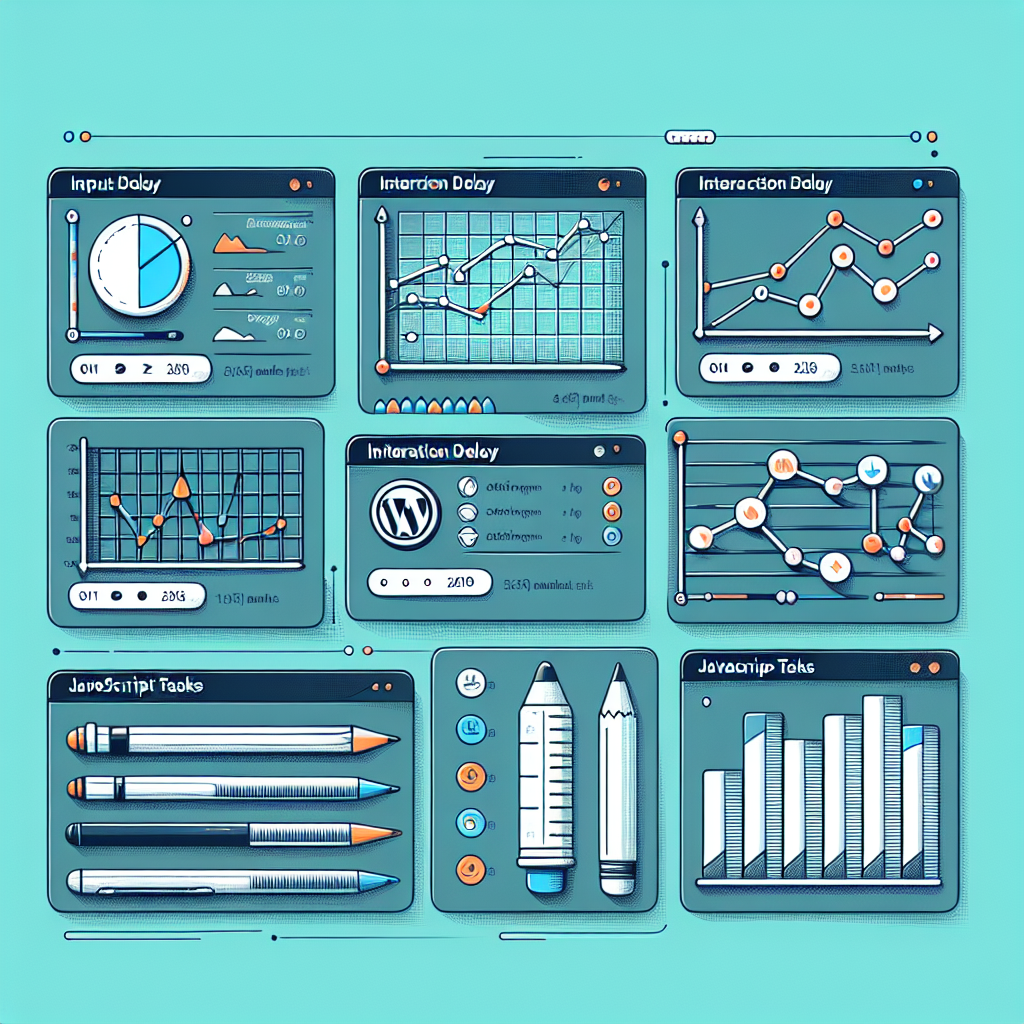
The fastest way to improve INP without damaging usability is to identify the interactions that users actually depend on. Do not optimize blindly by disabling everything interactive. Instead, prioritize the features that affect navigation, conversion, and accessibility.
Audit your essential interactions
Make a list of the site actions visitors use most often. For many WordPress sites, these include:
- Navigation menus and mobile menus
- Add-to-cart and checkout buttons
- Search fields and filters
- Contact forms and newsletter signups
- Accordion sections, tabs, and FAQ toggles
- Login, account, and password reset flows
These interactions should stay in place. The goal is to make them feel instant, not remove them.
Measure real user bottlenecks
Use field data when possible, because lab tests do not always reveal which interaction is actually slow on your site. Check page-level performance reports and identify pages where users interact most often. Then inspect the scripts and components active on those pages.
If a page has a slow INP only when a certain widget appears, that widget becomes the first target for optimization. If the problem occurs sitewide, the issue may be a theme script or a shared plugin.
Reduce Main-Thread Work Without Breaking Features
Most INP problems happen because the browser is busy when the user tries to interact. The browser can only do so much at once, so if it is parsing JavaScript, rendering a large layout, or running a long task, the interaction waits.
The fix is not to remove every script. It is to reduce how much work happens at the exact moment the user needs a response.
Defer non-essential JavaScript
Scripts that are not needed immediately should load later or after the first paint. This can include sliders, marketing widgets, social embeds, and some analytics tools. Deferring them frees the main thread for essential UI actions.
Be careful not to defer scripts that power critical interactions such as menu toggles, form validation, or cart updates. Those should remain available as soon as the page is usable.
Split large scripts into smaller pieces
If one script handles many features, consider loading only the parts needed for the current page or interaction. This is especially useful for page builders, complex themes, and plugin bundles that ship a lot of unused code.
Smaller bundles reduce the time the browser spends parsing and executing JavaScript, which can improve responsiveness without changing the user-facing feature set.
Remove duplicate and unnecessary dependencies
WordPress sites often load the same library more than once through different plugins. For example, multiple slider plugins or overlapping animation libraries may all compete for browser resources.
Review your installed plugins and theme features. If two tools do the same job, keep the one that is lighter or more central to your workflow. This preserves essential interactions while cutting waste.
Make Interactive Elements Faster to Respond
Some INP issues come from the way a feature is built, not from the feature itself. A menu can stay on the site and still become much faster if its event handling and rendering are improved.
Keep click handlers lightweight
When a user clicks a button, the browser should be able to respond quickly. If the click handler runs too much logic at once, the interface feels delayed. Keep the initial response simple: open the panel, show the state change, or provide immediate feedback first.
Any heavier processing, such as fetching data or updating multiple sections, should happen after the UI has already reacted.
Use progressive disclosure for complex UI
Instead of loading all interaction-heavy content at once, reveal only what the user needs. Accordions, tabs, and step-by-step forms are good examples. They preserve functionality while reducing the amount of visible work at any one time.
This approach can improve INP because the browser has less to update when the user interacts.
Avoid blocking animations and transitions
Animations are not bad, but they should never prevent the interface from responding. If a menu animation delays the opening state or a modal waits too long before becoming usable, the interaction feels slow.
Keep transitions short and lightweight. Prioritize immediate state changes over decorative motion.
Optimize WordPress Plugins and Theme Behavior
In WordPress, the theme and plugins often shape the majority of front-end behavior. That makes them the most important place to look when INP is poor.
Test plugins one by one on high-traffic pages
Some plugins have a small footprint but trigger expensive work during interaction. Others may load scripts on every page even when their features are used only once in a while.
Check whether each plugin is necessary on the pages where it runs. If a plugin is only needed on one template, limit it there instead of loading it sitewide.
Choose themes built for performance
Some themes rely on large frameworks and many bundled features. That can be convenient, but it also increases the amount of JavaScript and DOM complexity the browser must manage.
A leaner theme with fewer built-in extras often gives you better control over INP. You can then add only the features you actually need.
Watch for page builder overhead
Page builders can be useful, but they often generate extra markup and scripts. If your INP is poor on pages built with a visual editor, simplify the layout where possible. Reduce nested containers, avoid unnecessary widgets, and remove effects that do not support the page goal.
The aim is not to abandon the builder. It is to use it with restraint so the page remains responsive.
Handle Third-Party Scripts Carefully
Third-party scripts are a common hidden cause of slow interactions. Chat widgets, ad networks, review badges, tracking pixels, and social embeds may all compete for browser time.
Load third-party tools only when needed
If a widget is not essential on every page, do not load it on every page. For example, a support chat may be valuable on pricing and contact pages but unnecessary on blog posts.
Conditional loading keeps the feature available where it matters while reducing the performance cost elsewhere.
Delay non-critical embeds until user intent
Some embedded content can wait until the visitor chooses to interact with it. A video, map, or social feed does not always need to be active immediately. Showing a lightweight placeholder first can preserve the experience while postponing heavy scripts.
This is one of the best ways to improve INP without removing the feature entirely.
Audit marketing tags regularly
Tag managers can become overloaded over time. Each added tag may seem small, but together they can create measurable delay. Review your tags and remove anything that no longer serves a business goal.
Keep the tools that matter, but avoid letting analytics and marketing scripts dominate the interaction budget.
Use Smarter Rendering Patterns
Sometimes the issue is not the script itself but how the page updates after an interaction. If the browser must redraw too much content at once, the user waits longer for visible feedback.
Update only the part of the page that changed
A button click should not trigger a full-page re-render when only one section needs to change. Limit DOM updates to the smallest possible area so the browser can paint the result faster.
This is especially important for filters, search results, cart updates, and interactive forms.
Reduce unnecessary DOM complexity
Large nested layouts can slow down rendering and make updates more expensive. Simplifying the structure of a page can improve responsiveness without changing what the user sees.
Review repeated wrappers, stacked containers, and decorative blocks that add complexity but little value.
Provide immediate visual feedback
Even when a task takes time, the user should see that the site has responded. A pressed state, spinner, or loading message can make an interaction feel faster because it confirms that the click was received.
This does not lower the technical INP score by itself, but it improves the perceived experience and reduces frustration.
A Practical Fix Plan for WordPress Sites
If you want a simple way to tackle INP without removing important interactions, use this order of operations:
- Identify the pages and interactions with the worst real-world delay
- Check which theme, plugin, or third-party scripts run on those pages
- Defer or delay non-essential scripts
- Keep critical UI scripts available and lightweight
- Simplify heavy layouts, widgets, and animations
- Limit third-party tools to the pages where they add real value
- Retest after each change so you know what helped
This approach protects the features your users need while steadily improving responsiveness.
What not to do
Do not “fix” INP by deleting useful buttons, hiding navigation, or stripping out forms that support your business. That may improve a metric but damage the site’s purpose.
Also avoid making large batches of changes at once. If you remove many features simultaneously, it becomes hard to know which change improved performance and which one harmed usability.
Final Thoughts
Fixing WordPress INP is about balance. You want a site that feels fast, but you also need to keep the interactions that make the site useful. The best improvements usually come from reducing unnecessary JavaScript, simplifying rendering, and loading third-party tools more intelligently.
When you focus on essential interactions first, you can improve responsiveness without sacrificing the features that visitors actually use. That is the most sustainable way to optimize WordPress performance for both users and search engines.
For more guidance on performance best practices, see Google’s INP documentation and WordPress performance resources.